
 AutoCaptions
 AutoCut Silences
 AutoCut Podcast
 AutoZoom
 AutoViral
 AutoB-Rolls
 AutoCut Repeat
 AutoProfanity Filter
 AutoChapters
 AutoResize
 Help Center
 Blog
Blog Discord
 YouTube
 Ambassador
Adrian GUERY
2026-03-26
How We Built the Best B-Roll and Stock Footage Plugin for Premiere Pro
Discover how AutoB-Rolls helps Premiere Pro editors find stock footage, generate visuals, and insert B-roll directly into the timeline with AI.
The real problem with B-roll in Premiere Pro
B-roll itself isn’t complicated. The workflow around it is.
Once a project gets longer, say a 20 or 30-minute video, the number of visual moments increases quickly. A single sentence might trigger several possible visuals. Multiply that across an entire video and suddenly the editing process becomes a constant back-and-forth between Premiere and stock libraries.
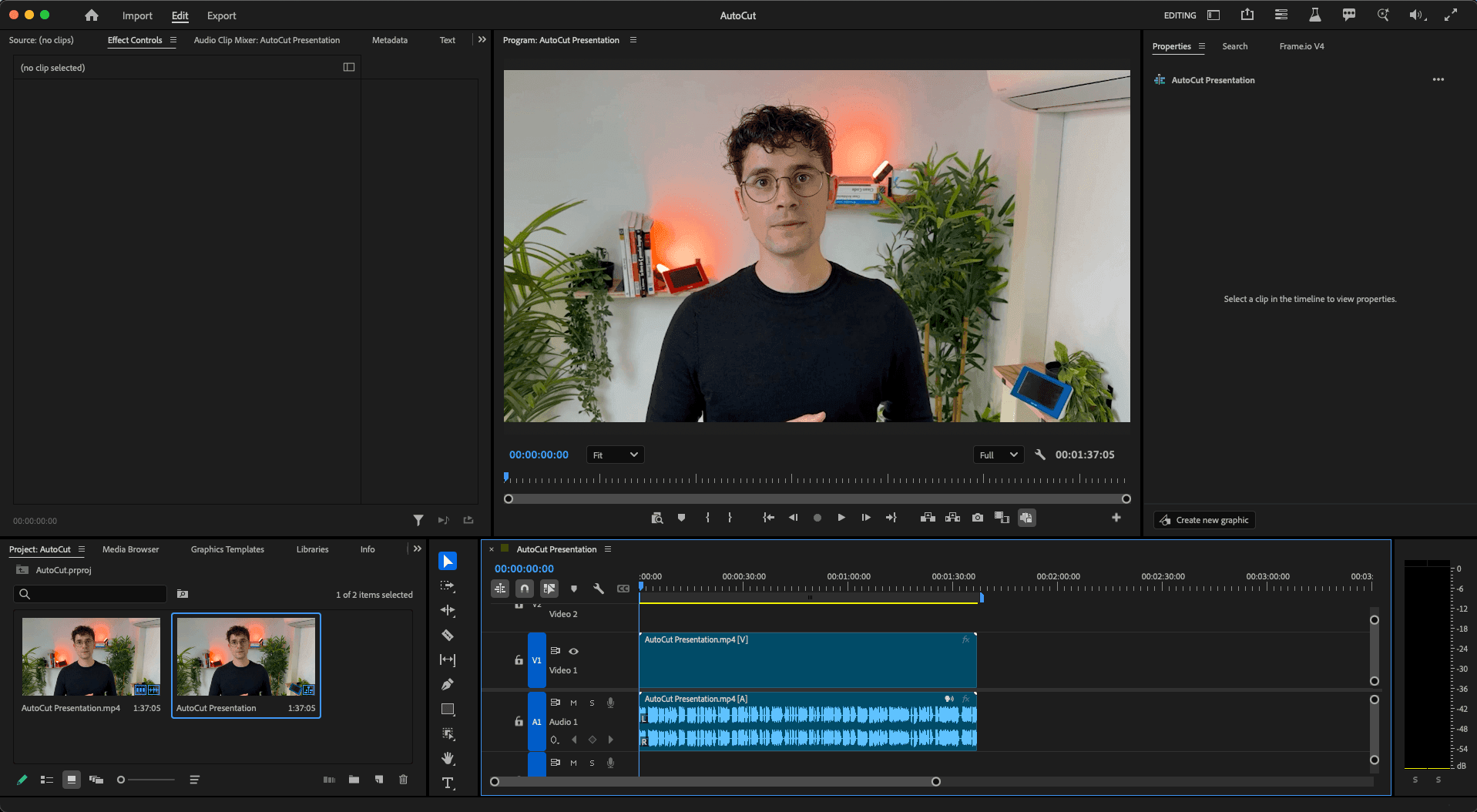
Editors end up jumping between the timeline, a browser tab, a stock platform, and their media folder. Every jump breaks focus.
Even after finding the right clip, the friction continues. Aspect ratios don’t always match. Clips are longer than needed. You still have to trim them, place them, and adjust timing.
None of these steps require creative thinking. But they take time, and they interrupt the part of editing that actually matters: shaping the story.
Why most B-roll tools only solve part of the workflow
Many tools try to make B-roll easier. Most of them focus on access to stock footage.
They help you browse footage libraries faster or organize clips inside your project. That’s useful, but it doesn’t change the core workflow. Editors still leave the timeline, search manually, download files, and place them one by one.
Some tools improve media management inside Premiere, which is helpful once clips are already in your project. But the biggest slowdown usually happens before that point, during the search itself.
The real gap is between what someone says in the video and the visual that illustrates it.
Building AutoB-Rolls by AutoCut: bringing the stock workflow into the timeline
The core idea behind AutoB-Rolls was simple: the editor shouldn’t need to leave the timeline to find visuals, and today AI are good enough to transcribe what is said on video for B-Rolls search.
Making that work required solving several smaller problems.
Understanding what the video is about
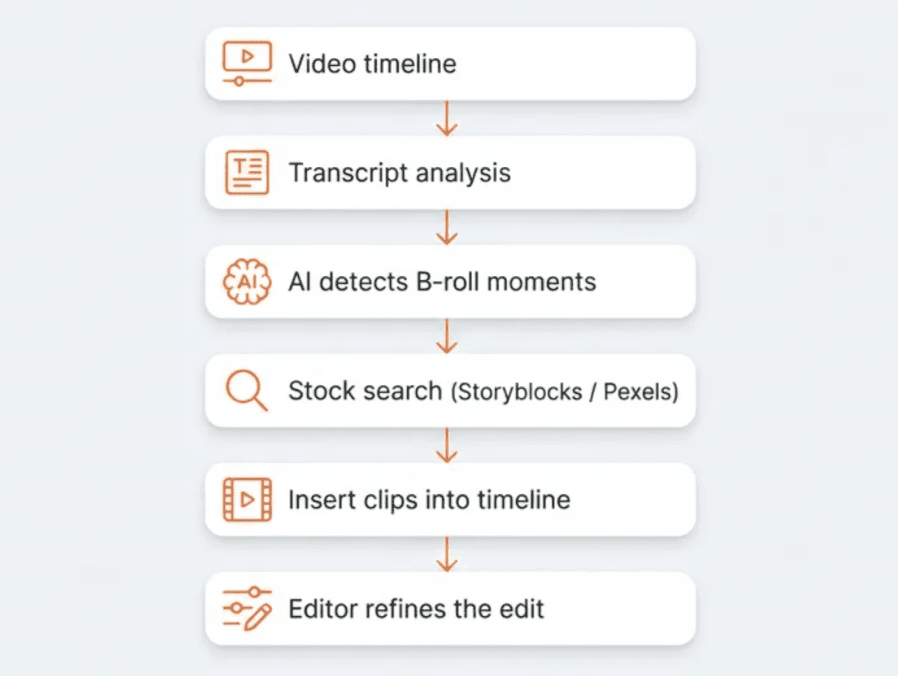
The first step is understanding the content of the video itself. AutoB-Rolls starts by transcribing the entire sequence. From there, AI analyzes the transcript and detects moments where visuals could support the narrative.
This doesn’t try to replace the editor’s judgment. The goal is simply to surface moments where B-roll might make sense, so editors don’t have to scan the whole timeline manually.
On long videos, this alone saves a surprising amount of time.
Searching stock footage inside Premiere
Once those moments are identified, the plugin generates search prompts based on the transcript context. These prompts are used to search integrated stock libraries such as Storyblocks and Pexels, or even one of the best AI image generators model.
Instead of opening a browser and switching tools, the search results appear directly inside the AutoB-Rolls panel. Editors can browse, preview clips, and select visuals while the timeline remains visible.
The workflow stays in one place.
Inserting B-roll directly into the timeline
Once a clip is selected, AutoB-Rolls places it directly into the sequence. The clip is aligned with the detected segment and trimmed to roughly match the spoken moment.
Editors can still adjust everything afterward. Duration, position, replacement, nothing is locked.
Automation here isn’t about making creative decisions. It’s about removing the repetitive steps between finding a clip and placing it in the timeline.
Speed was a key constraint
One requirement shaped most of the system: it had to be fast enough for long videos.
AutoB-Rolls can analyze roughly 1 hour and 30 minutes of footage in about a minute. That makes it practical to run on real editing projects without waiting for long preprocessing steps.
Editors can open the panel, run the analysis, and start working almost immediately
Why this workflow works well for talking-head content
Talking-head formats create a very specific editing pattern. The visuals usually follow what the speaker is saying.
You see it in YouTube videos, interviews, podcasts, educational content, and many creator workflows. Once you understand the transcript, finding supporting visuals becomes much easier.
That’s why AutoB-Rolls tends to work especially well for these formats. The AI helps narrow down where visuals could fit, while the editor keeps full control over what actually ends up in the timeline.
Try AutoB-Rolls
AutoB-Rolls is part of AutoCut and runs directly inside Premiere Pro.
You can try it with a 14-day free trial, no credit card required
Adrian GUERY
Co-founder
Start your 14-day free trial
Elevate your editing process with AutoCut now!