 AutoCaptions
 AutoCut Silences
 AutoCut Podcast
 AutoCut Angles
 AutoZoom
 AutoViral
 AutoB-Rolls
 AutoCut Repeat
 AutoProfanity Filter
 AutoChapters
 AutoResize
 Help Center
 Blog
Blog Discord
 YouTube
 Ambassador
Really easy to use. I personally use the Podcast & Silence features since I'm running a podcast of my own. Really saves me a lot of time that I spend now editing the thumbnail. I’d definitely recommend it!


Combine smart triggers, tune camera priorities, and build a ready-to-refine multicam edit in a few clicks.
14-day free trial. No credit card required.
Step-by-Step
Set the logic once, then choose direct timeline editing or a multicam sequence in Premiere Pro or DaVinci Resolve.
Select the timeline section, choose the voice track AutoCut should analyze, then add each camera track.
Combine switch triggers, tune relative camera priorities, and set a minimum shot duration for a natural rhythm.
Cut the selected camera tracks in Premiere Pro or DaVinci Resolve, disable or remove inactive clips, and optionally cut audio at the same switch points.
AutoCut leaves your original footage untouched and creates a multicam sequence above the timeline. Open any section in your editor’s multicam view to change the camera choice after automation.
Testimonials
Feedback from creators using AutoCut across their editing workflow.
Really easy to use. I personally use the Podcast & Silence features since I'm running a podcast of my own. Really saves me a lot of time that I spend now editing the thumbnail. I’d definitely recommend it!
I really like the Podcast features. It helped me a lot in my editing process.

I mainly use the AutoCut Podcast feature — it's been a game-changer for streamlining my podcast editing process. It's a must-have for content creators looking to save time while maintaining professional-quality edits.

Thank you for this product! Editing podcast is now a pleasure!

Great features! Best for podcast multi-cam editing. I used this plugin mainly for AutoCut Podcast feature. Saved me a lot of time.

The best plugin for Podcast Studio owners. Thank you very much!

I love the fact you have helped me save so much time on annoying editing processes. Editing podcasts is what I mainly use it for, as well as making shorts and adding subtitles to them. I have already recommended it to a couple of friends.

I mainly use it for editing podcasts in multi-camera, and it's great! Kudos to the whole team for this great tool. I highly recommend it!

AutoCut's podcast feature simply blew my mind. I used to spend hours on the multicam edit, and now i just autocut it with disabled clips and just make sure everything seems okay, modify a bit if necessary which is rarely the case. A must have!

The features I use the most in AutoCut are AutoZoom and AutoCut Podcast. I edit big interviews and clips so it's a super tool that makes my daily task easier.

The AutoCut Podcast feature is superb and I was able to reduce several minutes off my videos. Definitely worth if you're recording non-live podcasts or want to republish later on. I tried this with some of my podcast videos and it worked great.

Really easy to use. I personally use the Podcast & Silence features since I'm running a podcast of my own. Really saves me a lot of time that I spend now editing the thumbnail. I’d definitely recommend it!
I really like the Podcast features. It helped me a lot in my editing process.
I mainly use the AutoCut Podcast feature — it's been a game-changer for streamlining my podcast editing process. It's a must-have for content creators looking to save time while maintaining professional-quality edits.
Thank you for this product! Editing podcast is now a pleasure!
Great features! Best for podcast multi-cam editing. I used this plugin mainly for AutoCut Podcast feature. Saved me a lot of time.
The best plugin for Podcast Studio owners. Thank you very much!
I love the fact you have helped me save so much time on annoying editing processes. Editing podcasts is what I mainly use it for, as well as making shorts and adding subtitles to them. I have already recommended it to a couple of friends.
I mainly use it for editing podcasts in multi-camera, and it's great! Kudos to the whole team for this great tool. I highly recommend it!
AutoCut's podcast feature simply blew my mind. I used to spend hours on the multicam edit, and now i just autocut it with disabled clips and just make sure everything seems okay, modify a bit if necessary which is rarely the case. A must have!
The features I use the most in AutoCut are AutoZoom and AutoCut Podcast. I edit big interviews and clips so it's a super tool that makes my daily task easier.
The AutoCut Podcast feature is superb and I was able to reduce several minutes off my videos. Definitely worth if you're recording non-live podcasts or want to republish later on. I tried this with some of my podcast videos and it worked great.
Really easy to use. I personally use the Podcast & Silence features since I'm running a podcast of my own. Really saves me a lot of time that I spend now editing the thumbnail. I’d definitely recommend it!
I really like the Podcast features. It helped me a lot in my editing process.
I mainly use the AutoCut Podcast feature — it's been a game-changer for streamlining my podcast editing process. It's a must-have for content creators looking to save time while maintaining professional-quality edits.
Thank you for this product! Editing podcast is now a pleasure!
Great features! Best for podcast multi-cam editing. I used this plugin mainly for AutoCut Podcast feature. Saved me a lot of time.
The best plugin for Podcast Studio owners. Thank you very much!
I love the fact you have helped me save so much time on annoying editing processes. Editing podcasts is what I mainly use it for, as well as making shorts and adding subtitles to them. I have already recommended it to a couple of friends.
I mainly use it for editing podcasts in multi-camera, and it's great! Kudos to the whole team for this great tool. I highly recommend it!
AutoCut's podcast feature simply blew my mind. I used to spend hours on the multicam edit, and now i just autocut it with disabled clips and just make sure everything seems okay, modify a bit if necessary which is rarely the case. A must have!
The features I use the most in AutoCut are AutoZoom and AutoCut Podcast. I edit big interviews and clips so it's a super tool that makes my daily task easier.
The AutoCut Podcast feature is superb and I was able to reduce several minutes off my videos. Definitely worth if you're recording non-live podcasts or want to republish later on. I tried this with some of my podcast videos and it worked great.
Really easy to use. I personally use the Podcast & Silence features since I'm running a podcast of my own. Really saves me a lot of time that I spend now editing the thumbnail. I’d definitely recommend it!
I really like the Podcast features. It helped me a lot in my editing process.
I mainly use the AutoCut Podcast feature — it's been a game-changer for streamlining my podcast editing process. It's a must-have for content creators looking to save time while maintaining professional-quality edits.
Thank you for this product! Editing podcast is now a pleasure!
Great features! Best for podcast multi-cam editing. I used this plugin mainly for AutoCut Podcast feature. Saved me a lot of time.
The best plugin for Podcast Studio owners. Thank you very much!
I love the fact you have helped me save so much time on annoying editing processes. Editing podcasts is what I mainly use it for, as well as making shorts and adding subtitles to them. I have already recommended it to a couple of friends.
I mainly use it for editing podcasts in multi-camera, and it's great! Kudos to the whole team for this great tool. I highly recommend it!
AutoCut's podcast feature simply blew my mind. I used to spend hours on the multicam edit, and now i just autocut it with disabled clips and just make sure everything seems okay, modify a bit if necessary which is rarely the case. A must have!
The features I use the most in AutoCut are AutoZoom and AutoCut Podcast. I edit big interviews and clips so it's a super tool that makes my daily task easier.
The AutoCut Podcast feature is superb and I was able to reduce several minutes off my videos. Definitely worth if you're recording non-live podcasts or want to republish later on. I tried this with some of my podcast videos and it worked great.
Full walkthrough
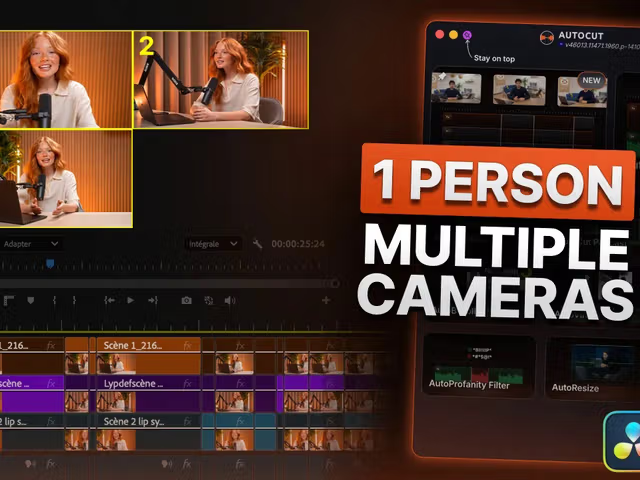
Follow the complete workflow in Premiere Pro. AutoCut Angles also automates camera switching in DaVinci Resolve.
Support
Everything you need to know before automating your multi-angle edit.
Yes. AutoCut Angles automatically switches camera angles in both Premiere Pro and DaVinci Resolve. Apply the result directly to your tracks or use multicam editing to simplify changes after automation.
AutoCut analyzes the voice audio track you select and switches cameras at eligible cut points. You can combine four triggers: existing cuts, silences, emotion, and transcript.
Camera priorities bias how often each angle is chosen. They are not fixed screen-time percentages. You can also set a minimum shot duration to prevent overly fast changes.
No. AutoCut never selects the same camera twice in a row, which keeps the sequence visually varied.
Direct editing cuts your selected camera tracks and disables or removes inactive clips in Premiere Pro or DaVinci Resolve. Multicam editing keeps your source footage in place and creates a multicam sequence that makes post-automation camera changes easier.
No. Choose the voice audio track AutoCut should analyze. A single microphone is enough for a typical solo setup.
Yes. In direct editing, enable Also cut audio if you want the voice track cut at the same switch points.
Yes. Disable is the recommended inactive-clip option when you want easy changes later. In multicam mode, open any edit in Premiere Pro's multicam monitor and choose another camera instantly.
Features
Discover more ways to speed up your edit with AutoCut.
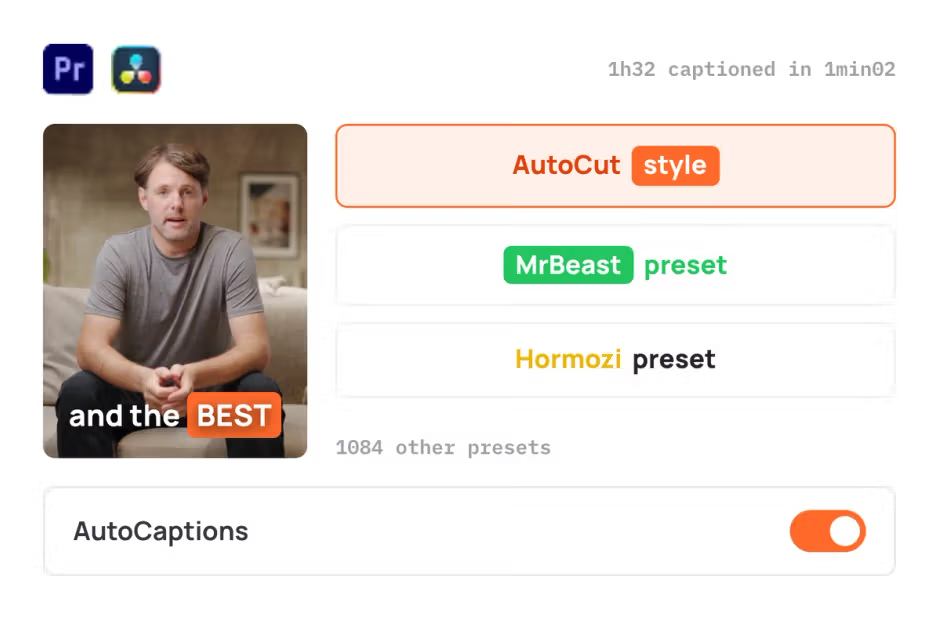
AutoCaptions
AutoCaptions generates animated captions and translates them instantly, boosting the dynamism and engagement of your videos.
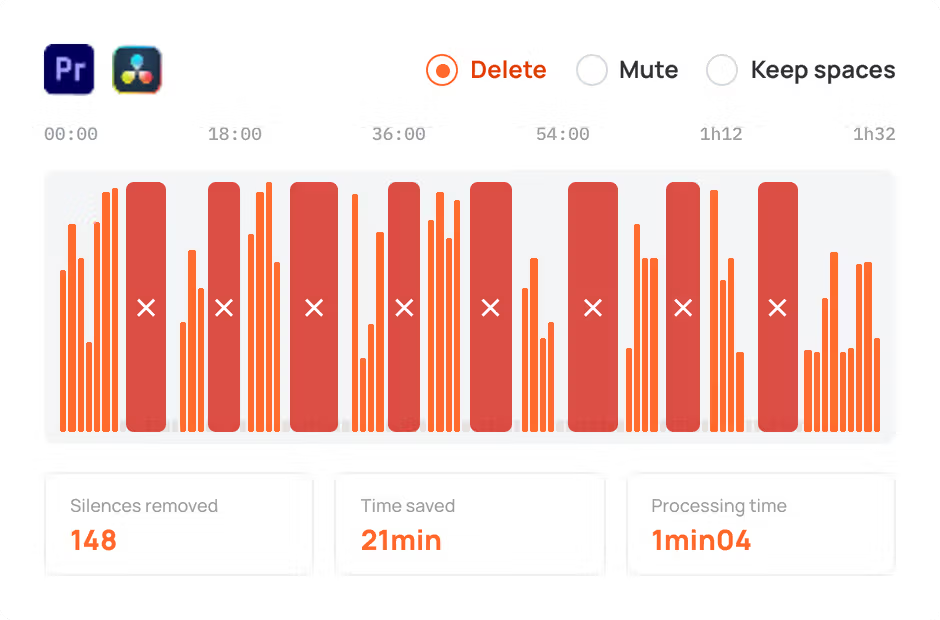
AutoCut Silences
AutoCut Silences eliminates pauses, enhancing video dynamics for a more captivating experience.
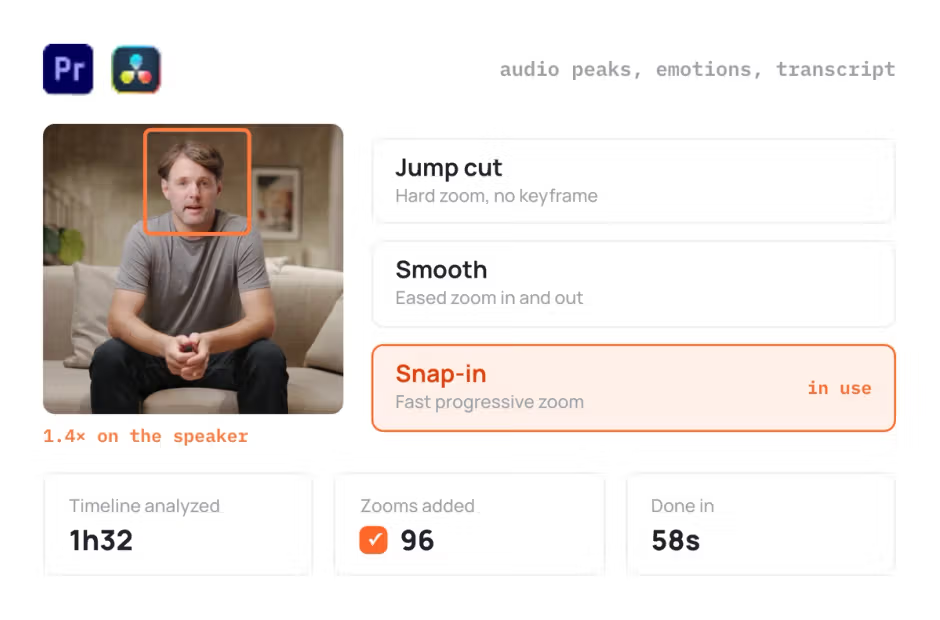
AutoZoom
AutoZoom applies smart and perfectly timed zooms to boost engagement and storytelling.
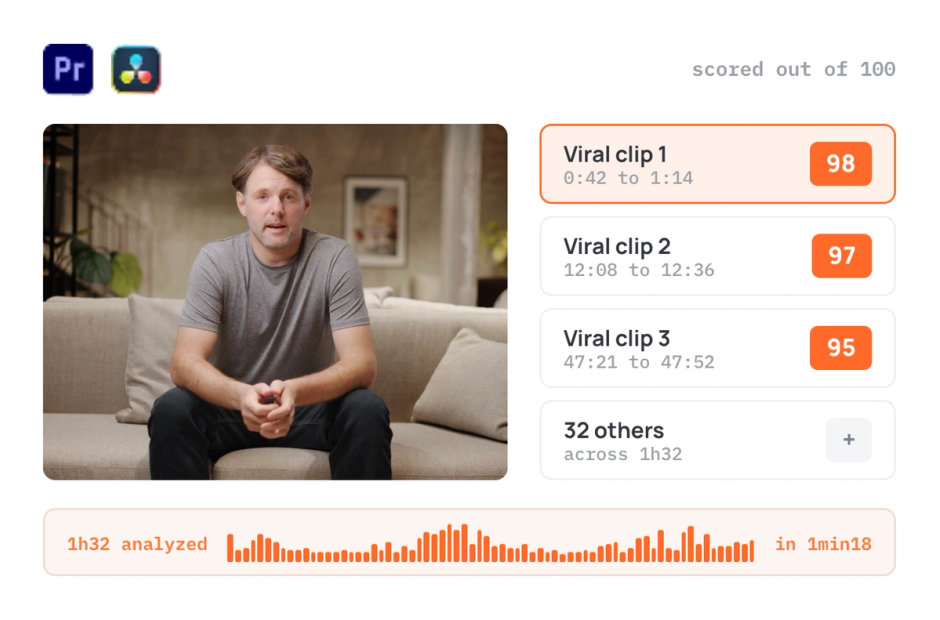
AutoViral
AutoViral identifies key segments in long videos for creating short-form content.
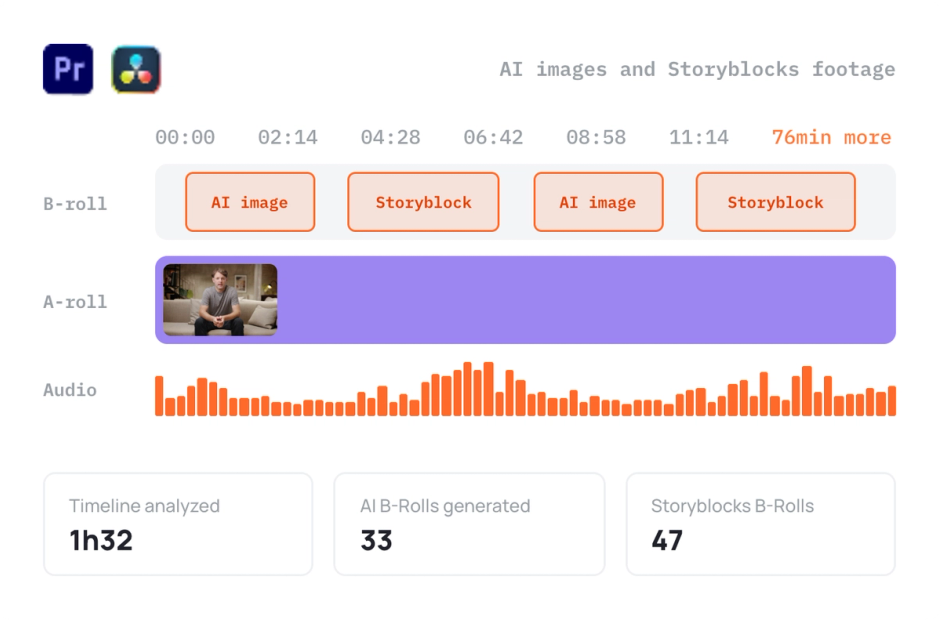
AutoB-Rolls
AutoB-Rolls uses AI to enrich your edits with perfectly integrated stock footage.
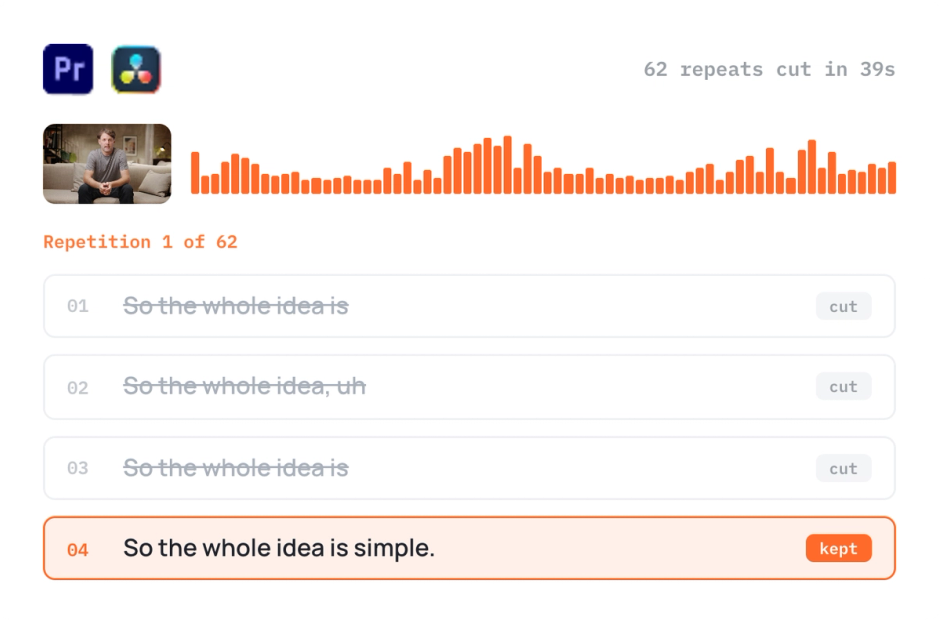
AutoCut Repeat
AutoCut Repeat identifies content repetitions and preserves only the best takes.
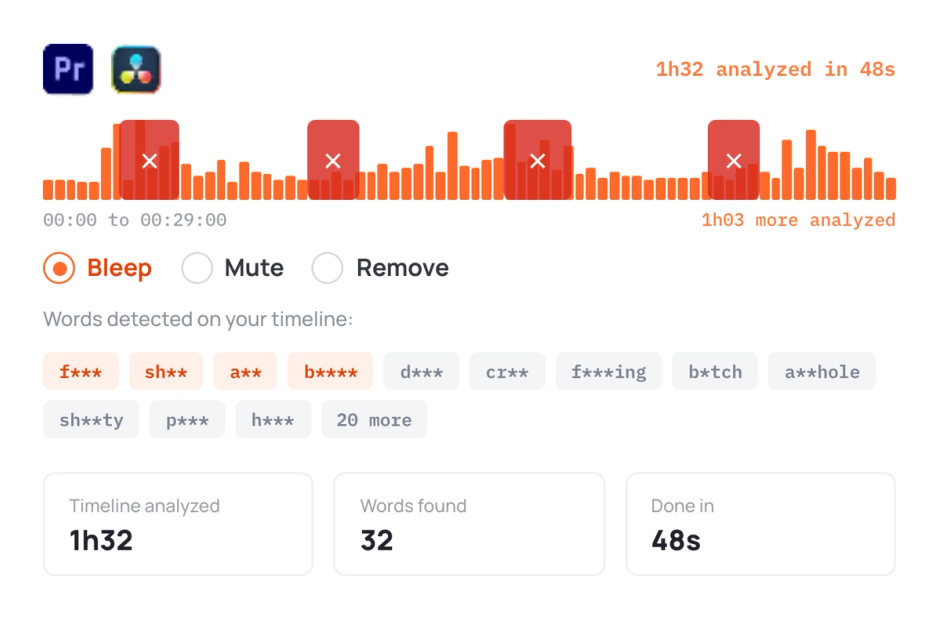
AutoProfanity Filter
AutoProfanity masks profanities with sound effects, ensuring content integrity.
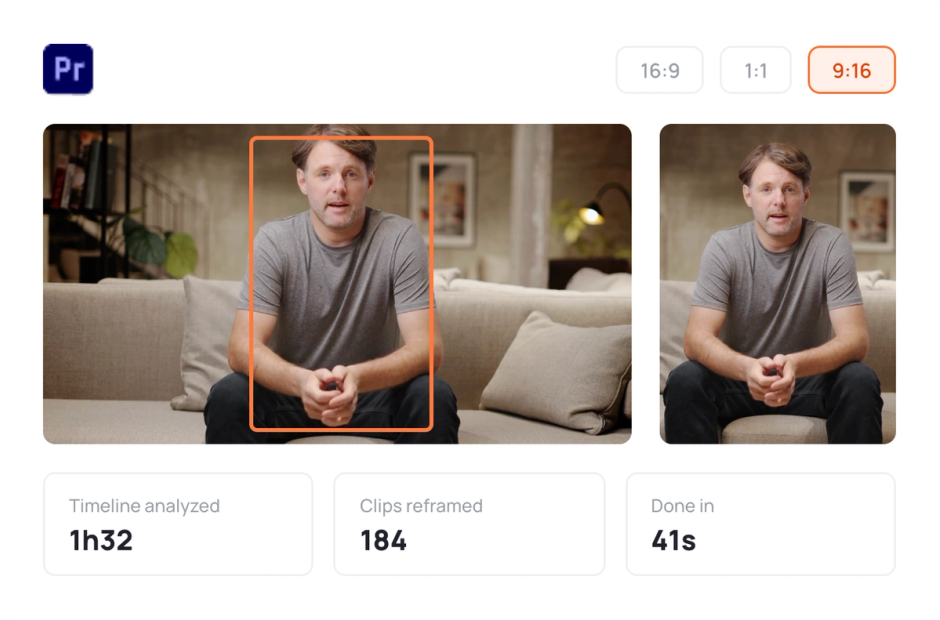
AutoResize
AutoResize adapts sequences to social formats, smartly keeping subjects centered.
Elevate your editing process with AutoCut now!