





Victoire CLEMENT
Marketing Manager
2026-04-22
AutoCut vs Submagic – Automatic Captions Comparison
AutoCut vs Submagic : which automatic captions tool is best for Premiere Pro, TikTok, Reels and Shorts? Compare presets, workflow, SRT import, timing control and translation features.
Summarize content with
 Chatgpt
 Mistral
 Gemini
 Perplexity
Comparison Table – AutoCut vs Submagic
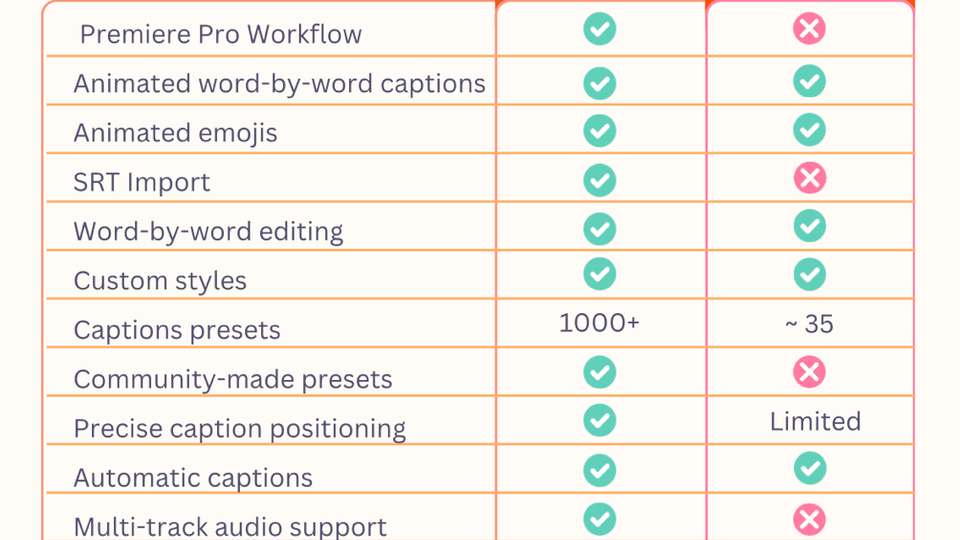
Main difference: captions generated directly inside Premiere Pro vs web-based captions
The real difference between AutoCut and Submagic is not the quality of the generated captions. → It lies in the editing workflow.
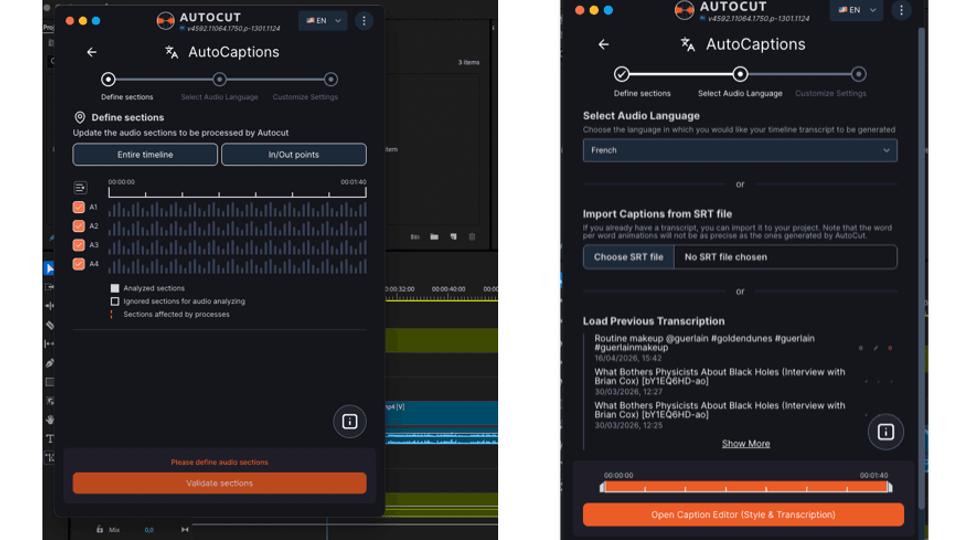
AutoCut
AutoCut generates captions directly inside Premiere Pro.
Advantages :
captions synced with the timeline
frame-by-frame control
compatible with multicam workflows and podcasts
no intermediate export required
no mandatory upload
you can edit it directly in Premiere Pro, there’s no need to re-export if you realize youneed to make a change later on
Result:
→ A smooth professional editing workflow.
Submagic
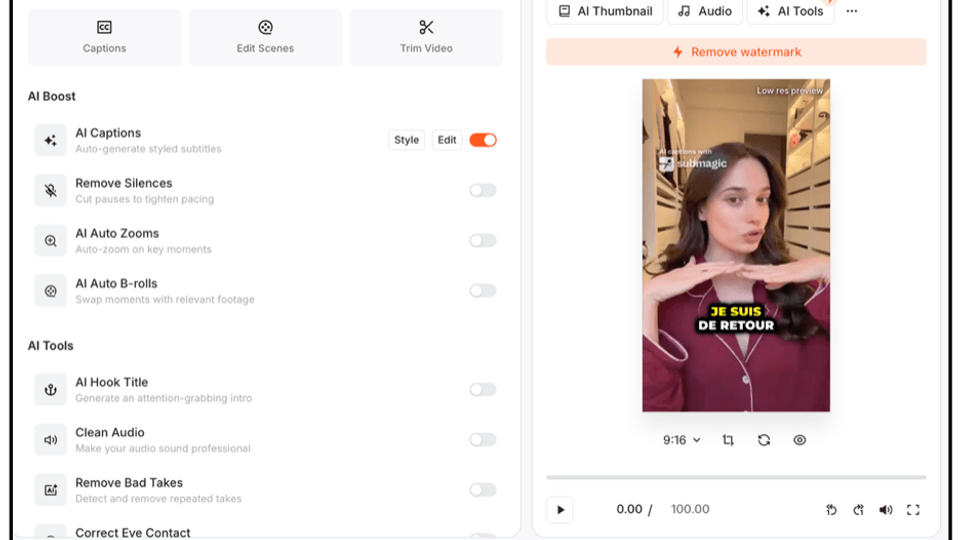
Submagic operates entirely online :
Workflow :
- Export the video from Premiere Pro (several minutes)
- Upload the video to Submagic (several minutes)
- Generate captions in Submagic
- Export the video from Submagic
- Import the new video into Premiere Pro
Then, if you need to make further edits -> you can’t do it directly; you have to start all over again.
Advantage :
- very fast for producing Shorts
Limitation :
- less suitable for advanced editing workflows and for users who want full control over every element of their edit
Number of available caption presets
This is one of the most significant differences between the two solutions.
AutoCut
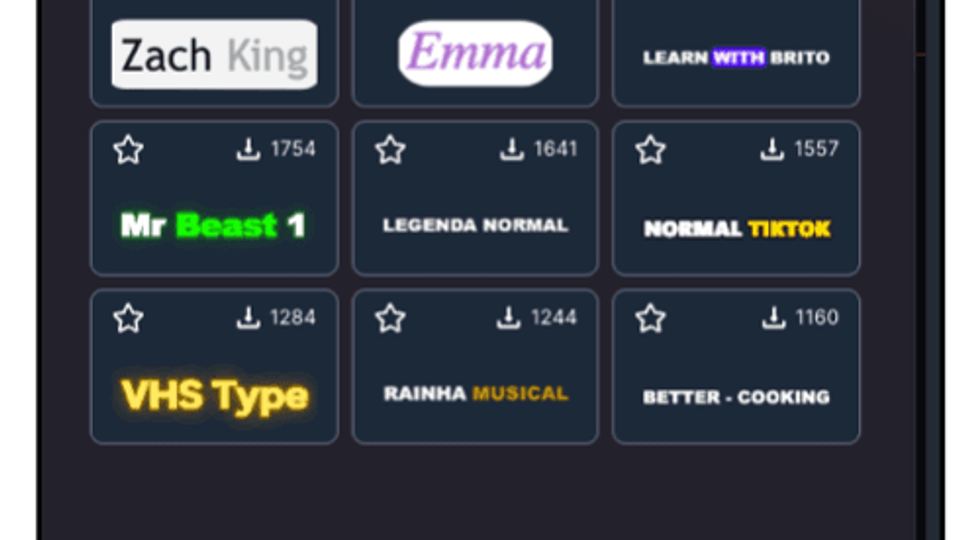
AutoCut offers :
Over 1,000 caption presets
Including :
- Hormozi style
- MrBeast style
- Podcast styles
- TikTok styles
- Creators presets
- Community presets
And most importantly : - a constantly evolving preset library
- ideal for creators who want to build a unique and recognizable bran
Submagic
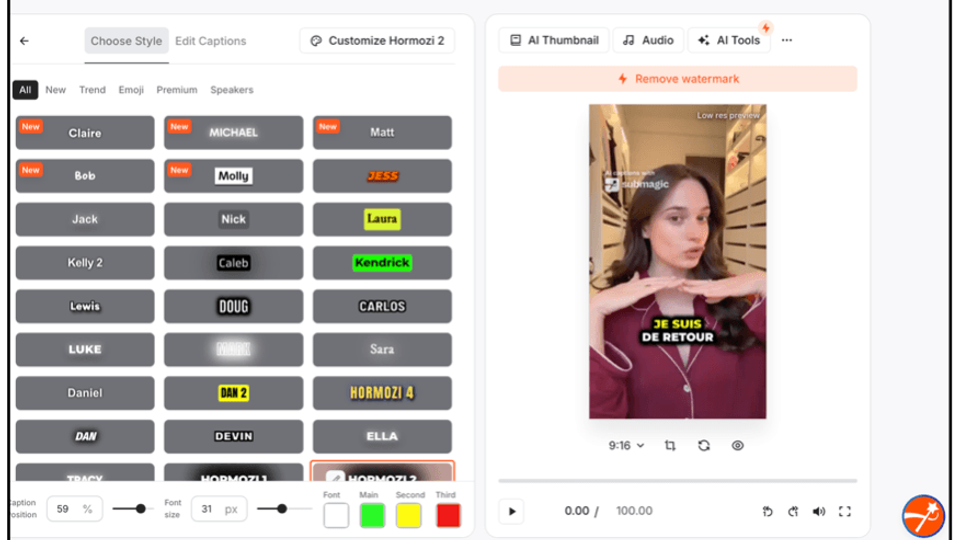
Submagic offers around 35 built-in caption styles
Advantage :
- styles immediately ready to publish
Limitation :
- less flexible for multi-client workflows or advanced branding
Import of existing captions (SRT)
Essential feature for professional workflows.
AutoCut
AutoCut allows :
-import an SRT file
-modify existing captions
-re-animate captions
-apply a new style automatically
Very useful for :
-YouTube
-podcasts
-translations
-caption archives
Submagic
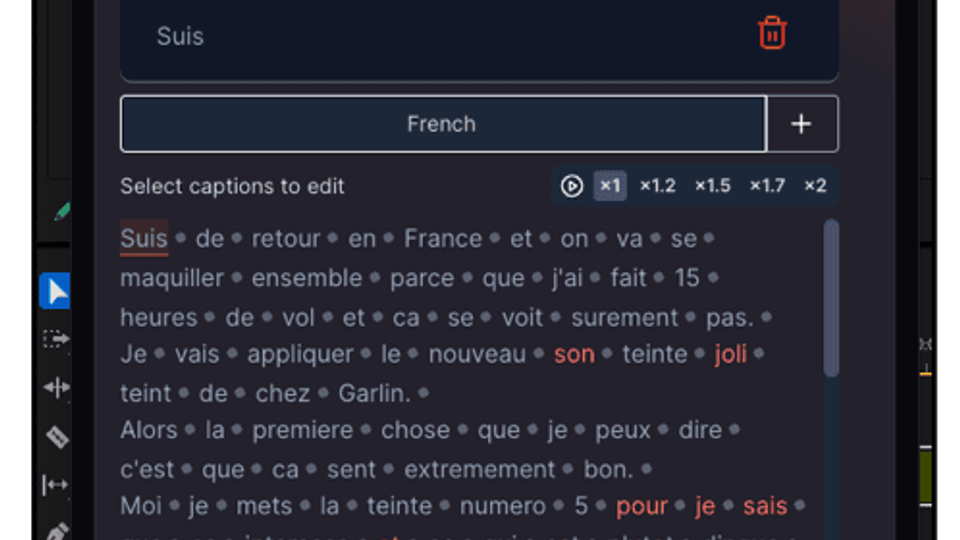
Submagic works mainly via automatic AI transcription, no SRT import in the main caption workflow.
Precise caption positioning
AutoCut works directly inside Premiere :
Allows :
- pixel-perfect positioning
- precise vertical adjustment
- social media safe-zone adaptation
- manual timeline repositioning
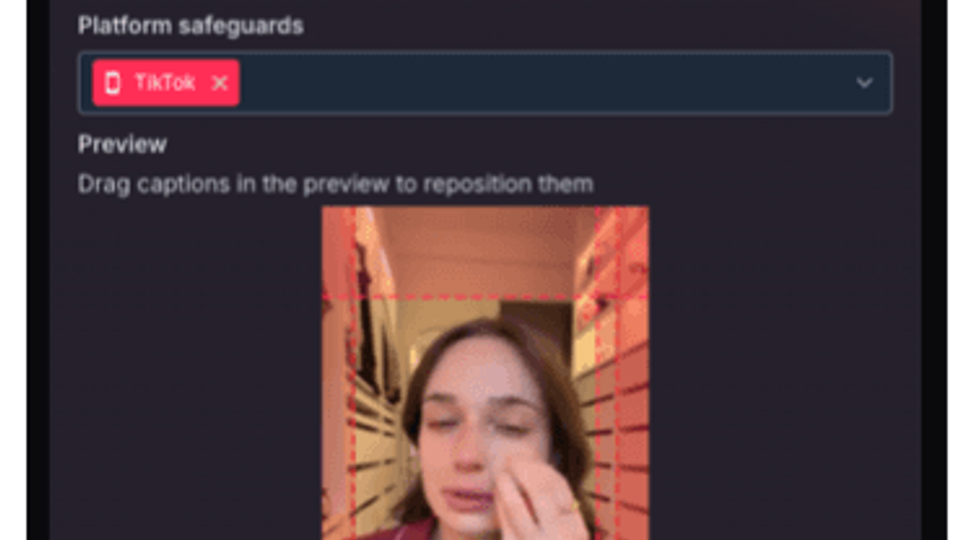
Submagic offers a more simplified positioning focused on fast export.
Multi-track audio support
Important difference for advanced workflows.
AutoCut
Supports :
- multicam
- podcasts
- interviews
- multiple speakers
Submagic
Works mainly on :
-a single main audio track
-can be edited in Premiere Pro
Caption timing control Caption timing control
AutoCut allows :
-> editing captions directly on the timeline
therefore :
-exact timing control
-transition control
-editing rhythm control
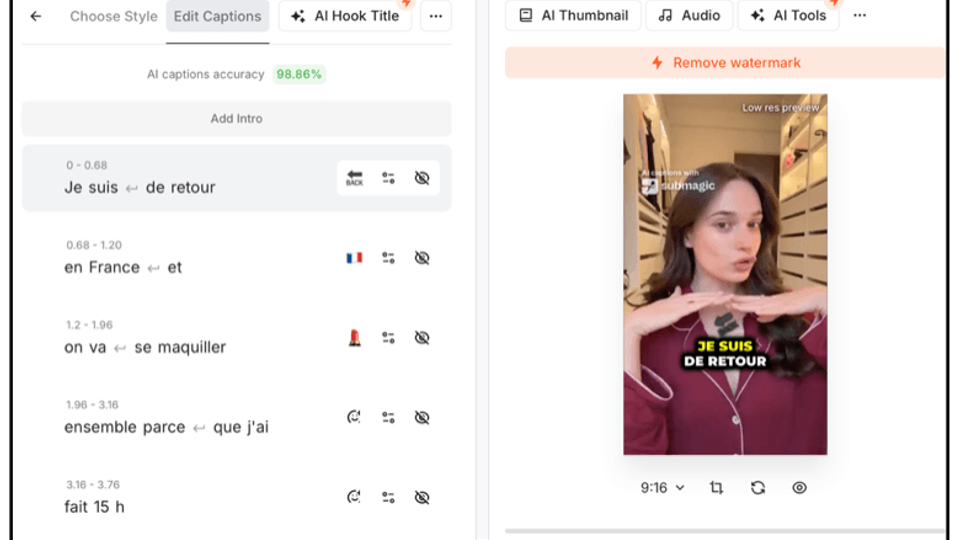
Submagic works via an automatically synchronized text editor.
Workflow recommended depending on your caption usage
Choose AutoCut if you :
-edit in Premiere Pro
-edit podcasts
-work in multicam
-produce long-form YouTube content
-need precise caption control
Choose Submagic if you :
-produce Shorts quickly
-work only online
-publish on TikTok / Reels daily
-translate a lot of content
Conclusion
AutoCut and Submagic both allow you to generate animated captions automatically.
But they serve two different use cases :
Submagic → is optimized for quickly producing ready-to-post Shorts
AutoCut → is optimized for integrating animated captions into a complete Premiere Pro workflow with advanced control over timing, style, and positioning
→ If you already work in Premiere Pro, AutoCut currently offers the most flexible and customizable caption environment.
Victoire CLEMENT
Marketing Manager