 AutoCaptions
 AutoCut Silences
 AutoCut Podcast
 AutoCut Angles
 AutoZoom
 AutoViral
 AutoB-Rolls
 AutoCut Repeat
 AutoProfanity Filter
 AutoChapters
 AutoResize
 Help Center
 Blog
Blog Discord
 YouTube
 Ambassador
Amélie BONNET
Marketing Manager
2026-05-20
Best AI tool to remove Silences in Premiere Pro (2026)
Discover the best AI tools to remove silences and dead air in Premiere Pro. Compare workflows, save editing time and automate podcast or talking head editing.
Summarize content with
 Chatgpt
 Mistral
 Gemini
 Perplexity
Why removing silences matters?
Whether you're editing:
- talking head videos
- podcasts
- interviews
- tutorials
- online courses
- YouTube videos
you probably spend a surprising amount of time cutting breathing pauses, empty gaps or silences.
Manual editing quickly becomes repetitive, especially on long-form content. For many creators, removing silences is one of the most time-consuming parts of the editing process. That’s exactly why AI editing workflows have become so popular in 2026.
Manual editing vs AI silence removal
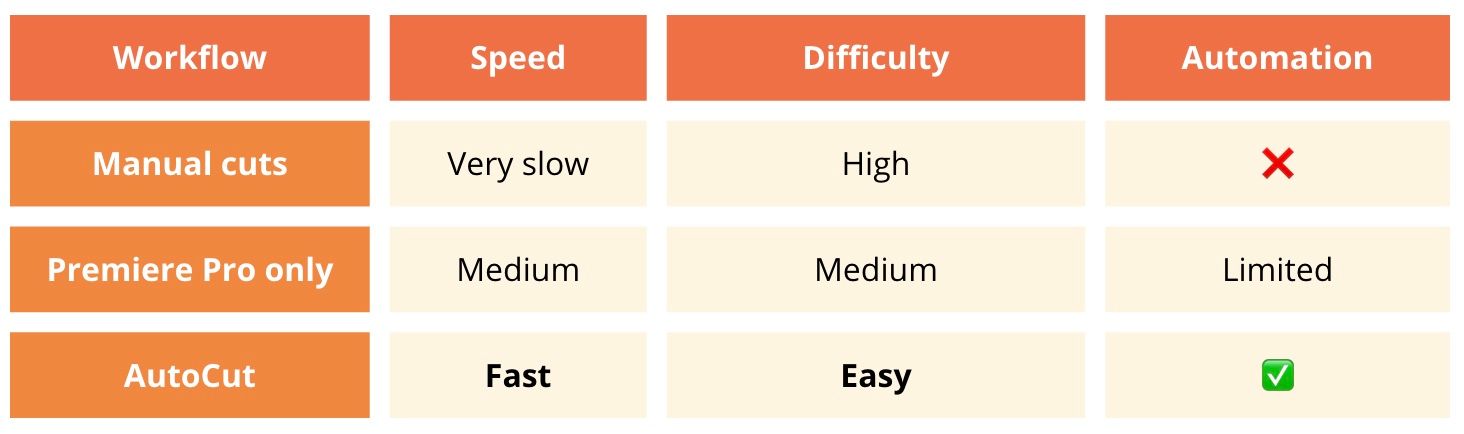
Traditional editing often means zooming into the timeline, manually selecting pauses and making hundreds of cuts. AI tools automate this process by detecting silence thresholds automatically and generating clean cuts in seconds.
Best AI tools to remove silences in Premiere Pro
1. AutoCut
AutoCut is one of the most efficient ways to remove silences directly inside Premiere Pro. Instead of forcing creators to switch between multiple softwares, AutoCut works natively inside the editing workflow.
Why creators use AutoCut for silence removal?
- Direct integration inside Premiere Pro
- Automatic pause and dead air detection
- Works great for talking head videos and podcasts
- Fast processing even on large projects
- Adjustable silence thresholds
- Backup system for safe editing
- Combines with captions, zooms and podcast workflows
One of the biggest advantages is workflow simplicity: you stay inside Premiere Pro from start to finish. That makes a huge difference for professional editors and creators already working on complex timelines.
2. Descript
Descript is another popular option for removing silences automatically. Its workflow is mainly text-based: you edit video through transcript editing rather than directly inside the timeline.
Best for beginner creators, podcast editing or transcript-based workflows.
Limitations for Premiere Pro users:
- external workflow
- export/import steps
- less native integration with Premiere timelines
3. Native Premiere Pro workflow
Adobe Premiere Pro can technically be used to remove silences manually, but the process quickly becomes repetitive.
Most editors cut clips manually, ripple delete pauses or adjust timing by hand.
This still works, but becomes difficult to scale for:
- daily YouTube uploads
- podcasts
- long-form talking head videos
- shorts production
How AutoCut removes silences automatically?
One of the biggest advantages of AutoCut is how simple the workflow feels inside Premiere Pro. Instead of manually scanning your timeline and creating dozens, sometimes hundreds of cuts, the process is largely automated.
Once your project is open in Premiere Pro, simply launch AutoCut and select the AutoCut Silences feature. The tool will automatically analyze your sequence and detect pauses, dead air, empty gaps and unnecessary silence sections that naturally appear while recording. Before generating the cuts, you still keep full control over the editing style. You can adjust parameters such as the minimum silence duration, sensitivity or spacing preferences depending on the pacing you want for your content.
Once you're happy with the settings, AutoCut instantly applies the cuts directly inside your Premiere Pro timeline. No exports, no switching between softwares, no repetitive manual editing session.
Just a faster workflow that lets creators focus on storytelling instead of timeline cleanup.
Best use cases for AI silence removal
AI silence removal can save time across many types of content, but some workflows benefit from it more than others.
Talking head videos
Talking head videos are probably the most common use case. Creators often record multiple takes, pause to think between sentences or leave small gaps while organizing ideas. Over the course of a long recording session, those moments quickly add up. Automatically removing unnecessary pauses can dramatically reduce editing time and create a smoother viewing experience.
Podcasts
Podcasts are another perfect example. Long-form conversations naturally include hesitation moments, breathing pauses and empty sections that can slow down pacing. Editing those moments manually can easily take hours, especially for creators publishing content regularly.
Tutorials and educational videos
Educational content creators often aim for a clean and dynamic rhythm. Removing unnecessary pauses helps explanations feel clearer, more structured and easier to follow, while keeping viewers engaged throughout longer lessons or tutorials.
YouTube videos
For YouTube creators, pacing often has a direct impact on viewer retention. That’s why many creators now automate repetitive editing tasks such as silence removal, captions, zoom effects or short-form content creation. Reducing repetitive editing work means more time spent on the creative side of content production.
Is AI silence removal worth it?
For most creators, the answer is yes but not only because of the time saved.
While cutting hours of repetitive editing work is an obvious benefit, the impact goes much further. Automating silence removal creates a smoother editing experience overall. It reduces repetitive tasks, speeds up production timelines and helps maintain a more consistent pacing across videos.
Instead of spending hours scanning timelines and manually cutting pauses, creators can focus their energy on the parts that actually improve content quality: storytelling, pacing, creative decisions and audience experience. For creators publishing regularly, even small time savings quickly add up. Saving 30 minutes on one project might not sound huge, but across multiple videos every week, it can represent several hours recovered every month.
That’s one of the reasons AI-powered editing workflows are becoming increasingly common among YouTubers, podcasters and content teams. The goal isn’t simply to edit faster: it’s to spend less time on repetitive work and more time creating better content.
FAQ
Removing Silences in Premiere Pro: Common Questions
Everything creators need to know about AI silence removal, dead air detection and faster editing workflows inside Premiere Pro.
Yes. Tools like AutoCut can automatically detect and remove pauses directly inside Premiere Pro timelines.
AutoCut is one of the most popular options because it works natively inside Premiere Pro and automates silence detection in a few clicks.
Yes. AutoCut is commonly used for podcast editing, including long-form and multi-camera workflows.
Yes. It’s especially useful for talking head videos where creators record multiple takes and natural pauses.
Yes. AutoCut is a plugin built for Premiere Pro workflows, which means creators can edit without exporting projects to external softwares.
Final thoughts
AI editing tools are changing how creators work inside Premiere Pro. Instead of manually cutting hundreds of pauses, creators can now automate repetitive editing tasks and focus on the creative side of content production.
For Premiere Pro users looking for a fast and professional workflow, AutoCut stands out as one of the best solutions to remove silences automatically.
Try AutoCut’s 14-day free trial and speed up your editing workflow directly inside Premiere Pro.
Amélie BONNET
Marketing Manager