








Myriam HINDERER
Chief Marketing & Communication Officer
2026-09-14
How to Turn a Podcast into Viral Clips Automatically with AutoCut AutoViral
Learn how to turn a full podcast or long form video into dozens of TikTok and Reels ready clips in just a few clicks with AutoCut AutoViral. Step by step tutorial covering AI clip detection, the viral score, and automatic vertical resizing.
Summarize content with
 Chatgpt
 Mistral
 Gemini
 Perplexity
What is AutoCut AutoViral?
If you're clipping long form content like podcasts or interviews for TikTok, Reels, or Shorts, you know how repetitive the process gets: watching hours of footage, spotting the best moments, cutting them, and formatting each one for social media.
AutoCut AutoViral automates that entire workflow. It analyzes your full video, detects the most interesting moments using AI, and generates ready to edit vertical clips directly in your Premiere Pro timeline. It's built for creators and editors who need to produce clips at scale, whether that's a handful a week or dozens a day.
Step 1: Select your section and validate
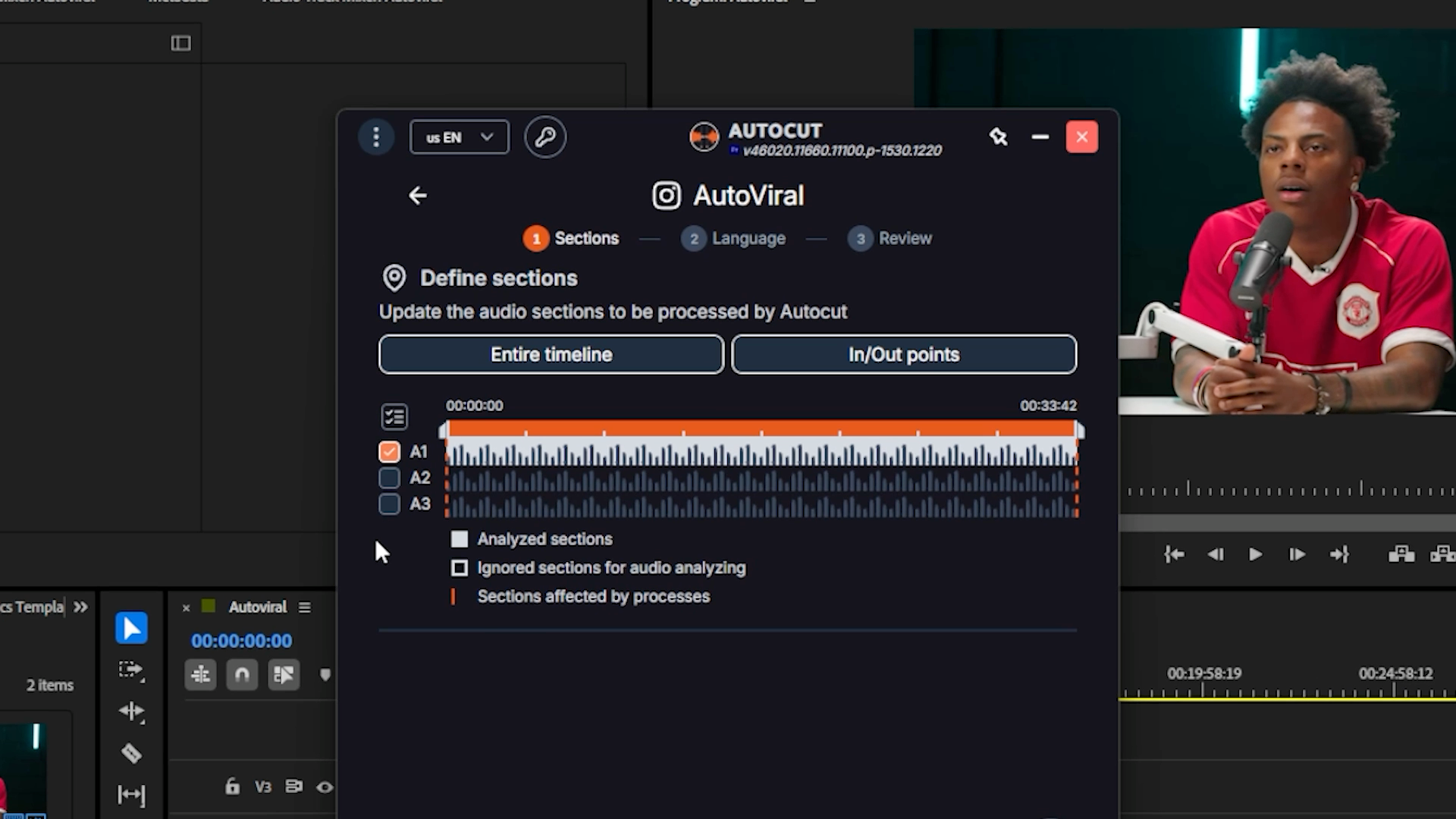
Open AutoViral, select the section of your timeline you want to analyze, and link the audio tracks tied to your footage. Once you're happy with the selection, click Validate sections.
Step 2: Choose your language and AI detection methods
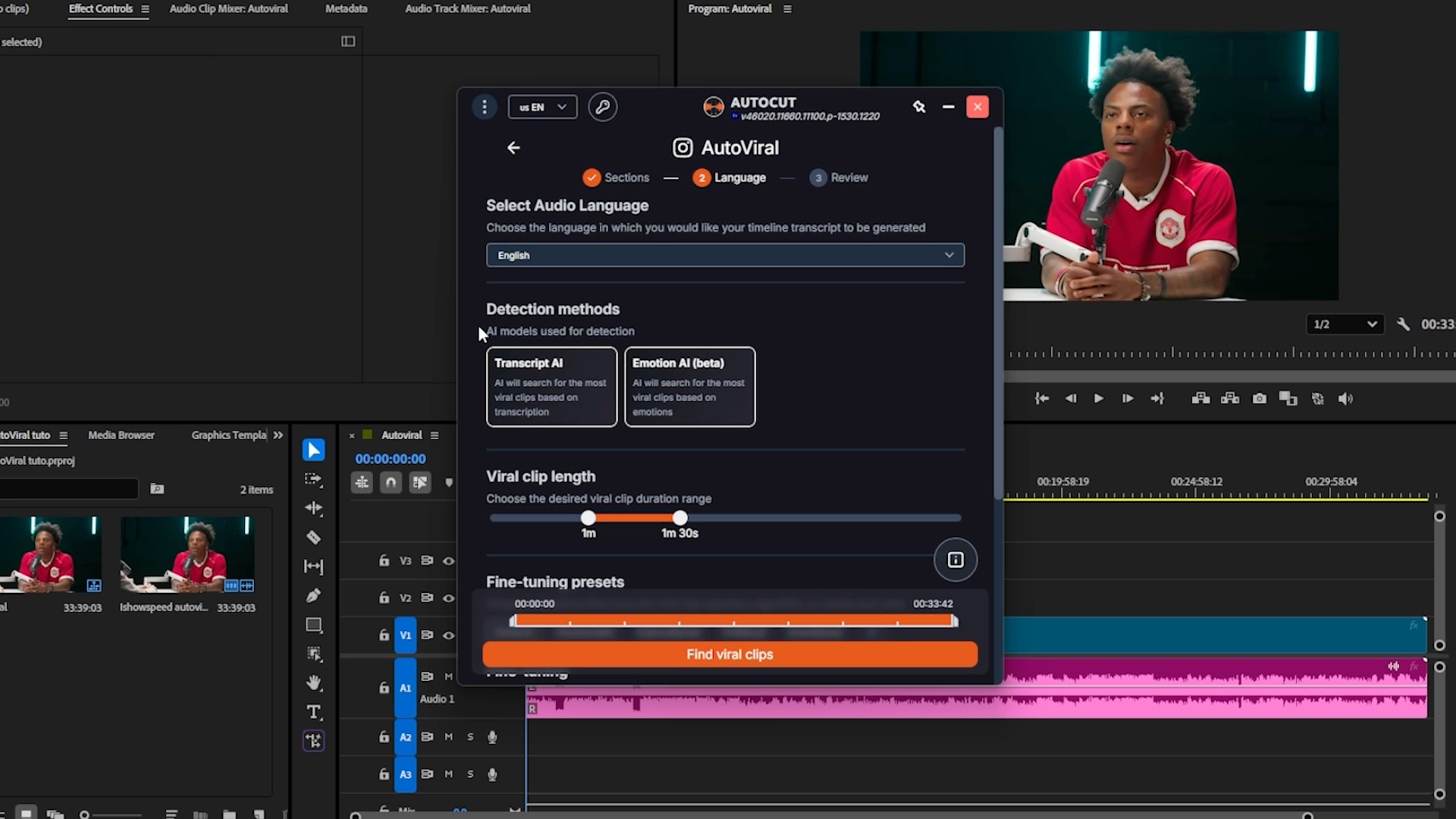
Set the language spoken in your video so AutoCut can transcribe and analyze the content correctly. Then pick your detection method, you can enable both at once:
- Transcript AI: looks for the most interesting moments based on what's actually being said.
- Emotion AI (beta): looks for interesting moments based on the emotions detected in the content.
Step 3: Set your clip length and fine tune with presets
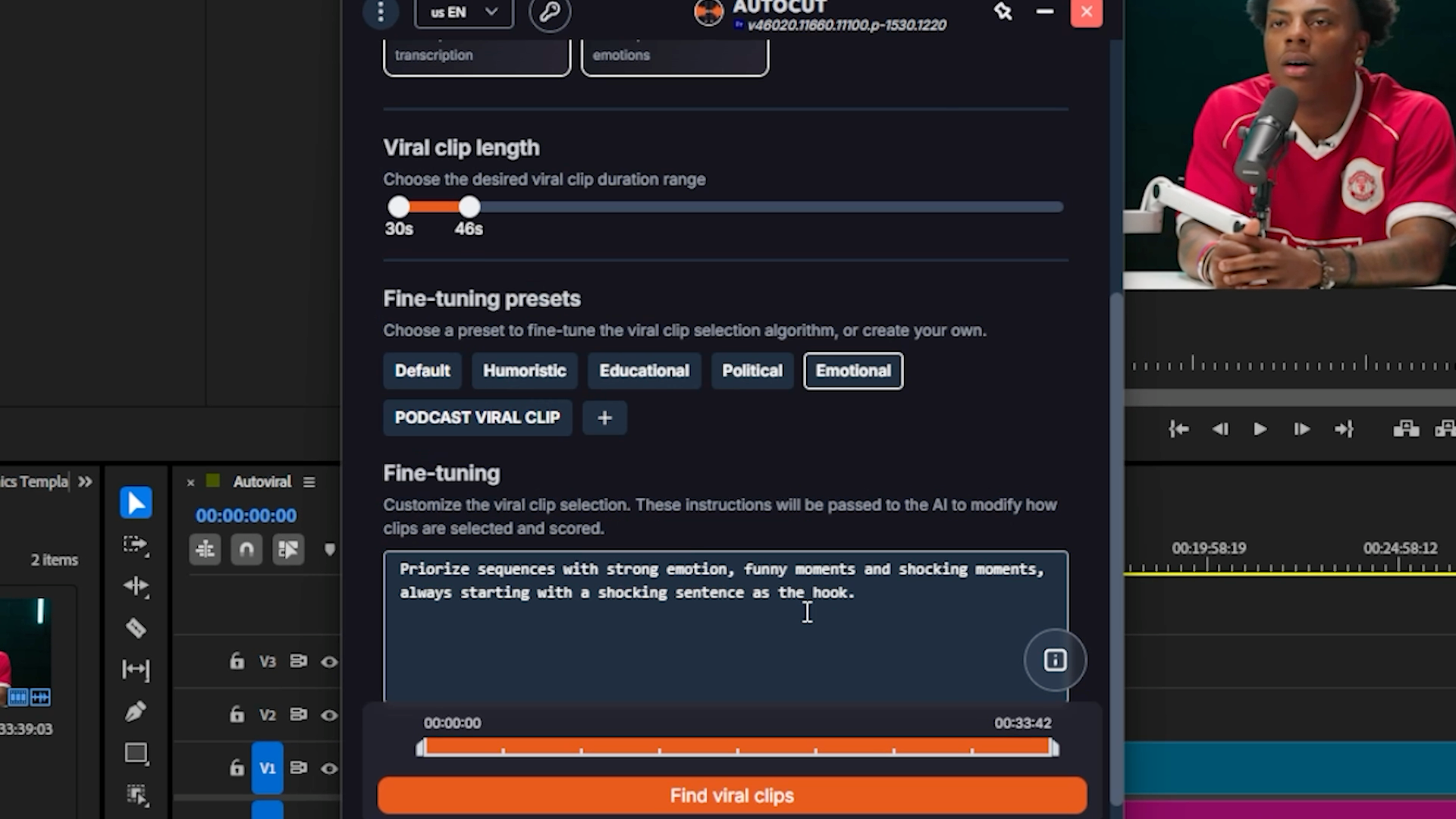
Set the clip length you want, for example between 30 and 40 seconds for TikTok or Instagram. This is also where fine tuning comes in: presets tell the AI what kind of moment to prioritize.
- Default
- Humoristic
- Educational
- Political
- Emotional
You can also create your own custom preset and write specific instructions if none of the defaults fit your content.
Step 4: Generate and review your viral clips
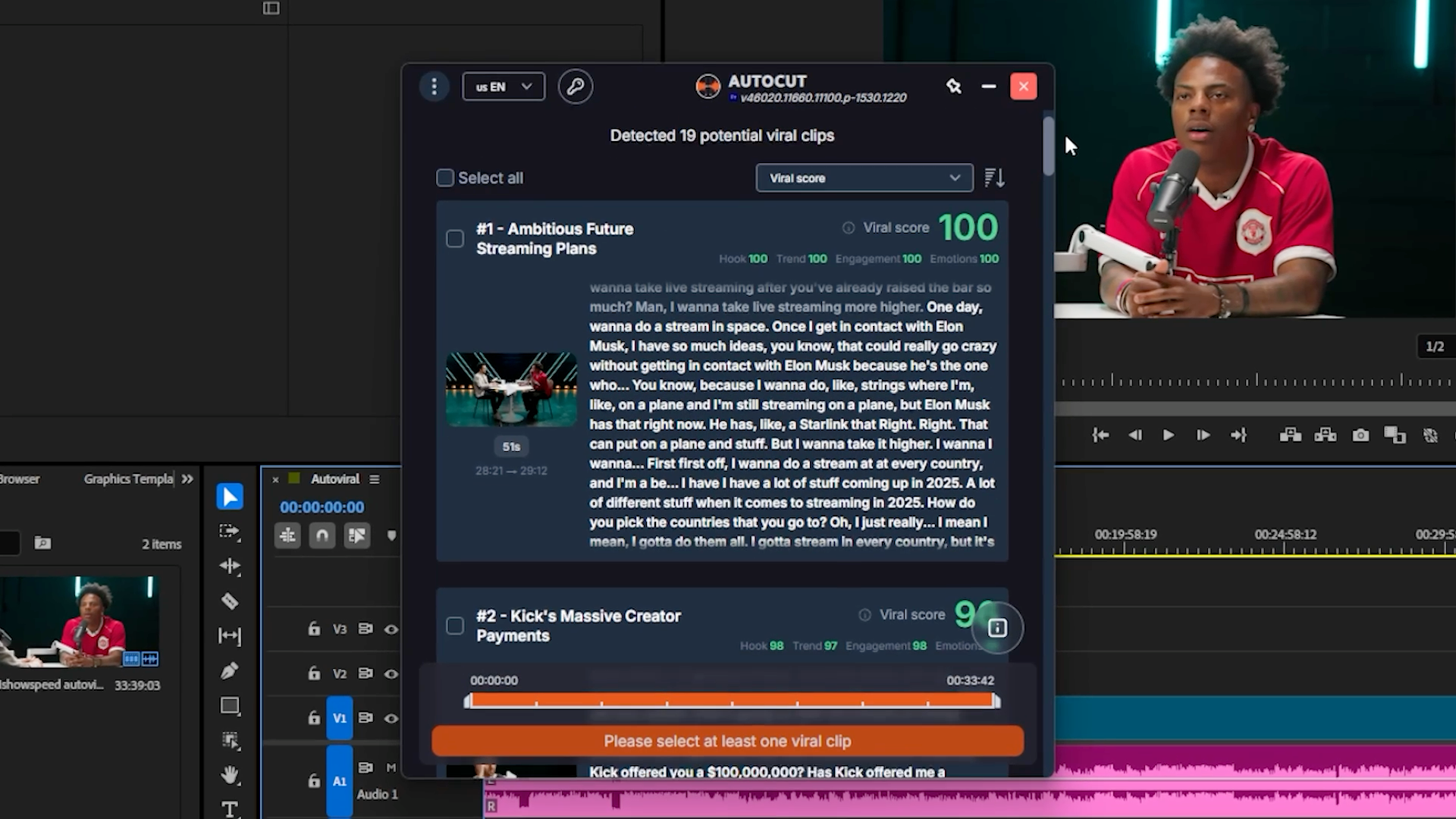
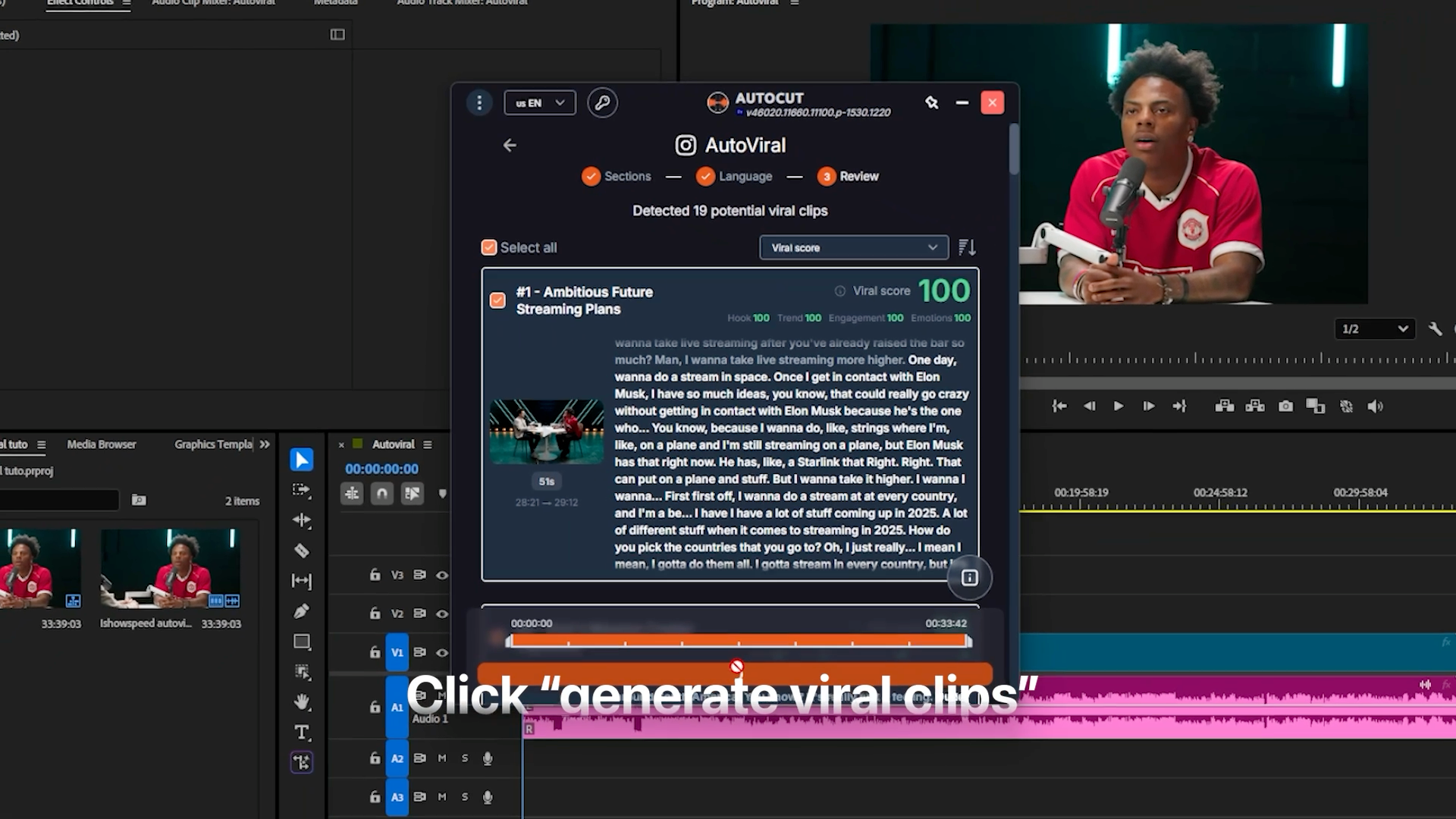
Click Find viral clips. AutoCut returns a full selection of moments, each with a generated title, its duration, its transcript, and a viral score out of 100, based on the hook, the trend, the engagement, and the emotion.
You can sort clips by score, by criteria, or simply by their position in the video, which makes it easy to prioritize the best moments first.
Step 5: Generate your clips into Premiere Pro
Select the clips you want to keep, or click Select all, then click Generate viral clips. AutoCut preps the timeline and automatically imports every clip into Premiere Pro.
From horizontal to vertical: pairing AutoViral with AutoResize
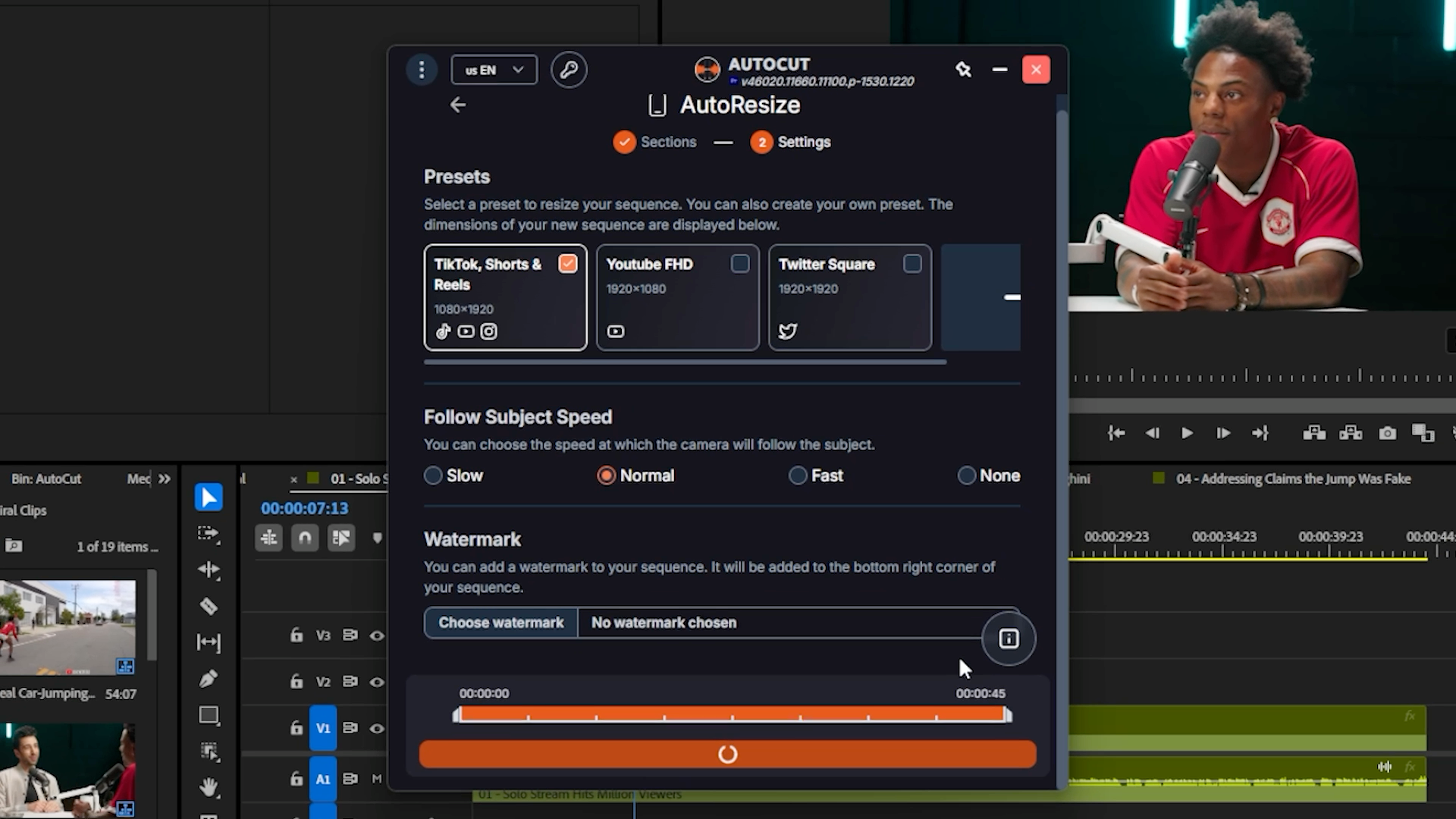
At this point your clips are still in the original, horizontal format. That's where AutoResize comes in. Open AutoResize, select your section like before, and choose the TikTok, Shorts & Reels preset.
Pick how fast you want the frame to follow your subject, slow, normal, fast, or none, and click Resize sequence. Your clips are automatically reframed in vertical, ready to post.
From a 1-hour podcast to dozens of ready to post clips
If you do clipping for a living, this is a massive time saver. Instead of manually scrubbing through an hour of footage, AutoViral and AutoResize together take you from a full podcast to several short, vertical, ready to edit clips in a few clicks.
Try AutoCut free for 14 days, no credit card needed.
Myriam HINDERER
Chief Marketing & Communication Officer