
 AutoCaptions
 AutoCut Silences
 AutoCut Podcast
 AutoCut Angles
 AutoZoom
 AutoViral
 AutoB-Rolls
 AutoCut Repeat
 AutoProfanity Filter
 AutoChapters
 AutoResize
 Help Center
 Blog
Blog Discord
 YouTube
 Ambassador
Myriam HINDERER
Chief Marketing & Communication Officer
2026-07-22
How to Use AutoCut on Another Computer (2026): Move Your License in Under a Minute
Need to run AutoCut on a second computer with the same account? Learn how to dissociate your license and reactivate it on another machine in under a minute, plus how the monthly device-switch limit works.
Summarize content with
 Chatgpt
 Mistral
 Gemini
 Perplexity
How Moving Your AutoCut License Works
Your AutoCut license is tied to your account, not locked to a single machine forever. To use it on another computer, you simply dissociate it from the current one and activate it on the new one. The whole process takes less than a minute and works the same way on Premiere Pro and DaVinci Resolve.
Step 1: Dissociate Your License on Your Current Computer
On the computer where your account is currently connected, open AutoCut inside Premiere Pro or DaVinci Resolve. Open the three-dots menu in the AutoCut panel and click Manage license key. This opens AutoCut's official page to manage your key and your account. You can also reach it directly by going to autocut.com and clicking Manage account.
On that page, there is just one thing to do: click Dissociate. Your license is now free to be activated on another machine.
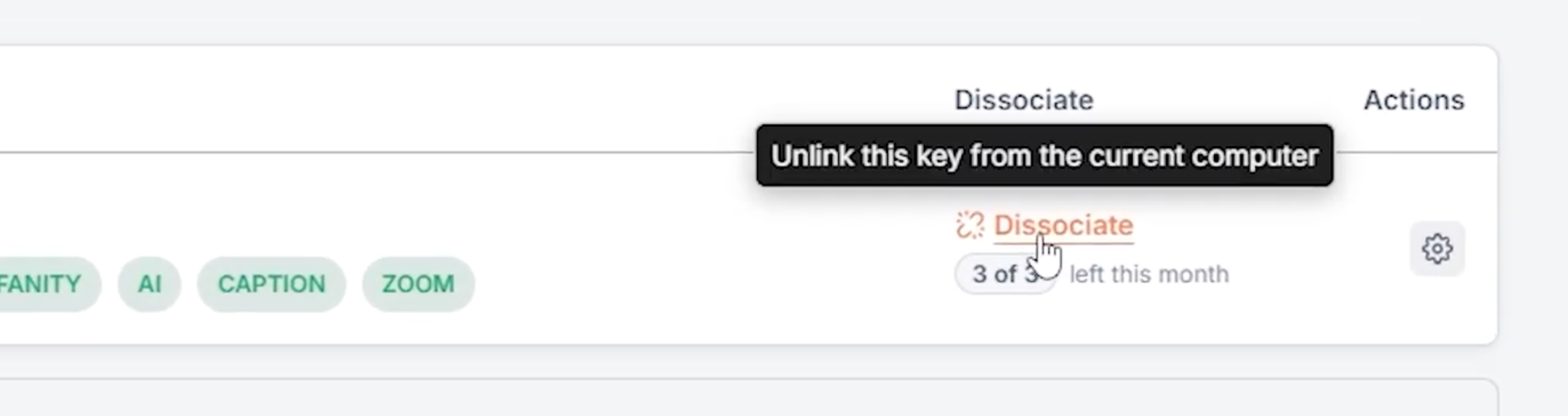
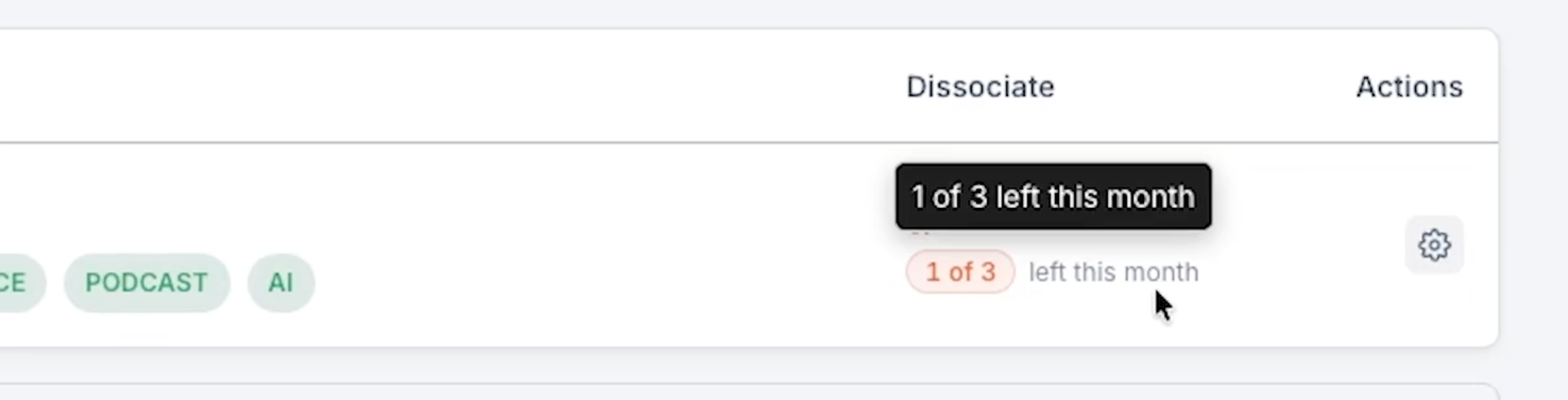
Good to Know: You Can Switch Computers 3 Times a Month
A quick but important heads-up: you can switch computers up to three times per month. This limit exists to prevent account sharing, and also because every setup, Windows, Mac, Intel or ARM, requires specific development work on our end. Supporting two different configurations basically doubles the maintenance.
A typical use case: you edit on your desktop every day and travel with your laptop from time to time. You dissociate the license from your desktop, activate it on your laptop for the trip, then switch it back when you are home. That is exactly what this feature is for. If you go over three switches in a month, you will need a second license.
Step 2: Install AutoCut on Your New Computer
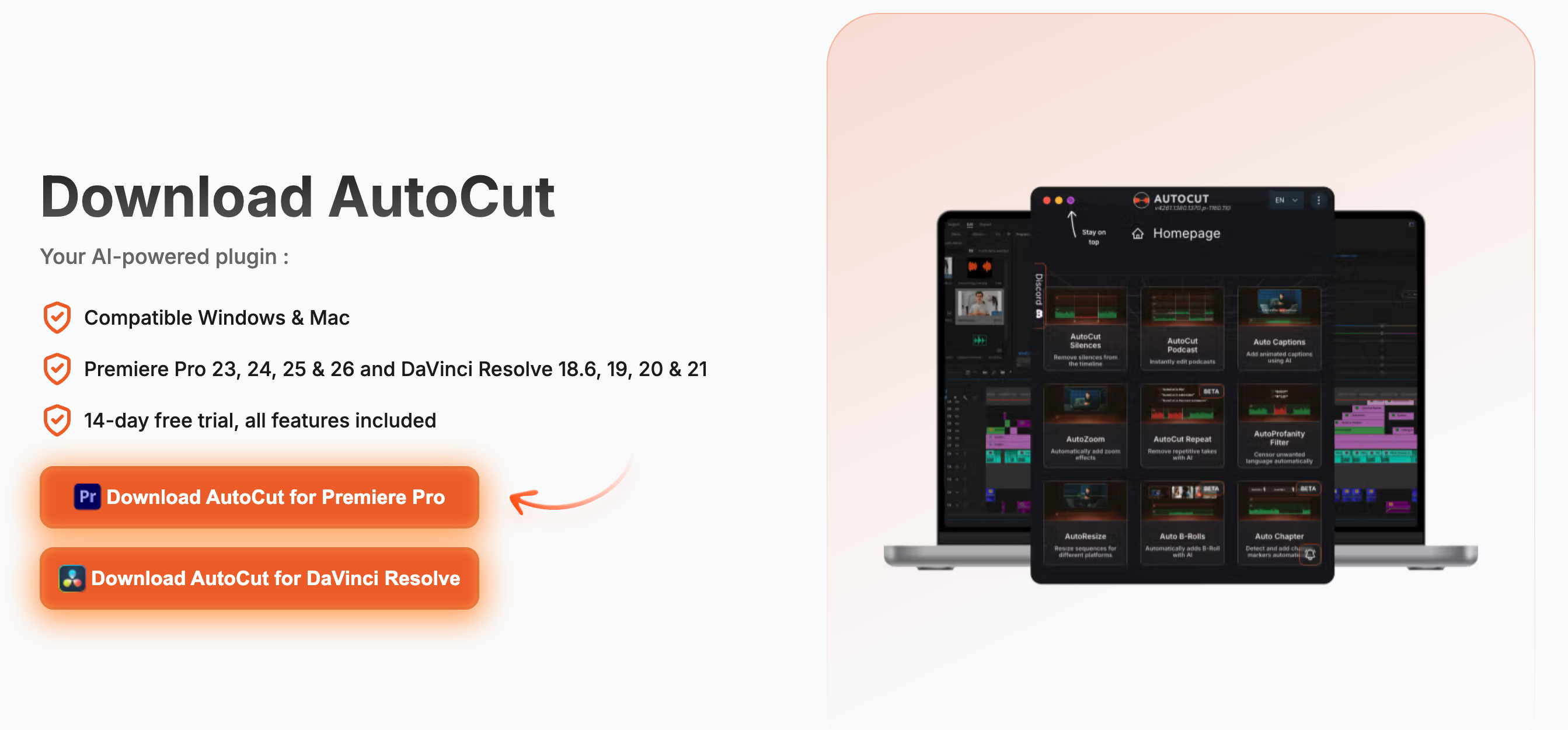
Now move to your other computer. If you have not already, install AutoCut for Premiere Pro or DaVinci Resolve, then open your editing software and launch AutoCut.
Step 3: Log In and Activate Your License
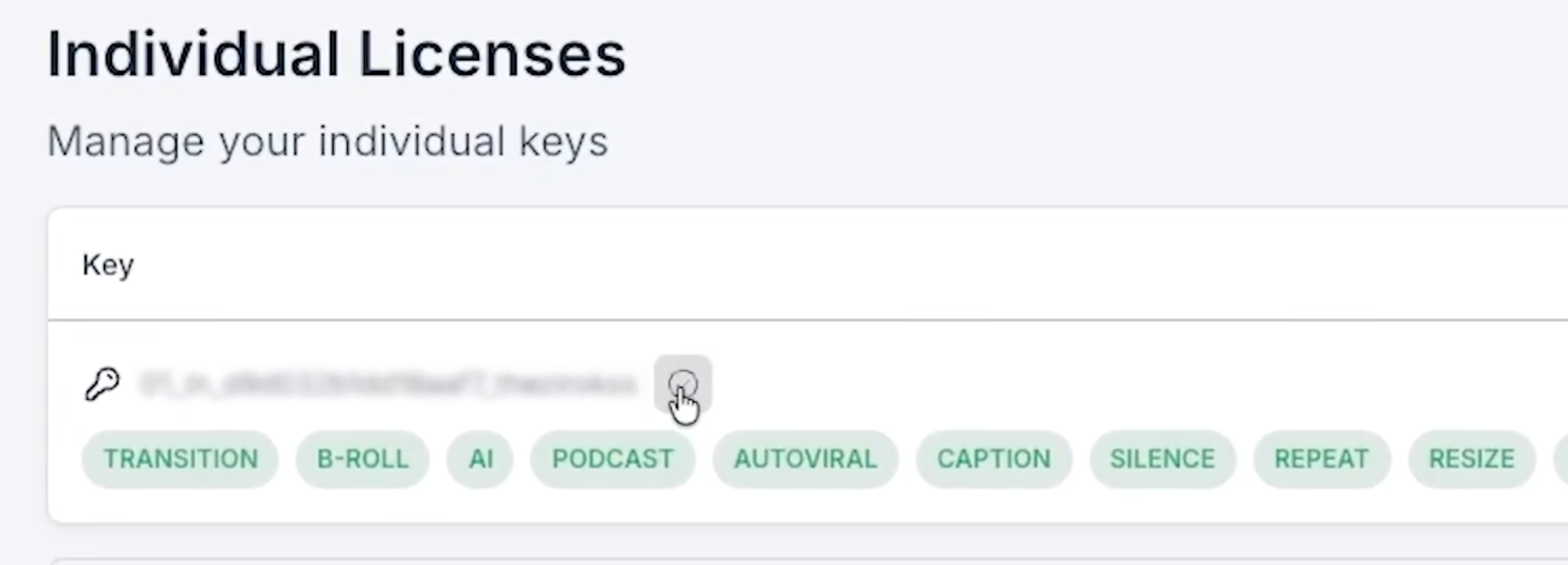
To log in, open the three-dots menu again and click Manage license key, then sign in to your account, with Google for example. Copy your license key from the page.
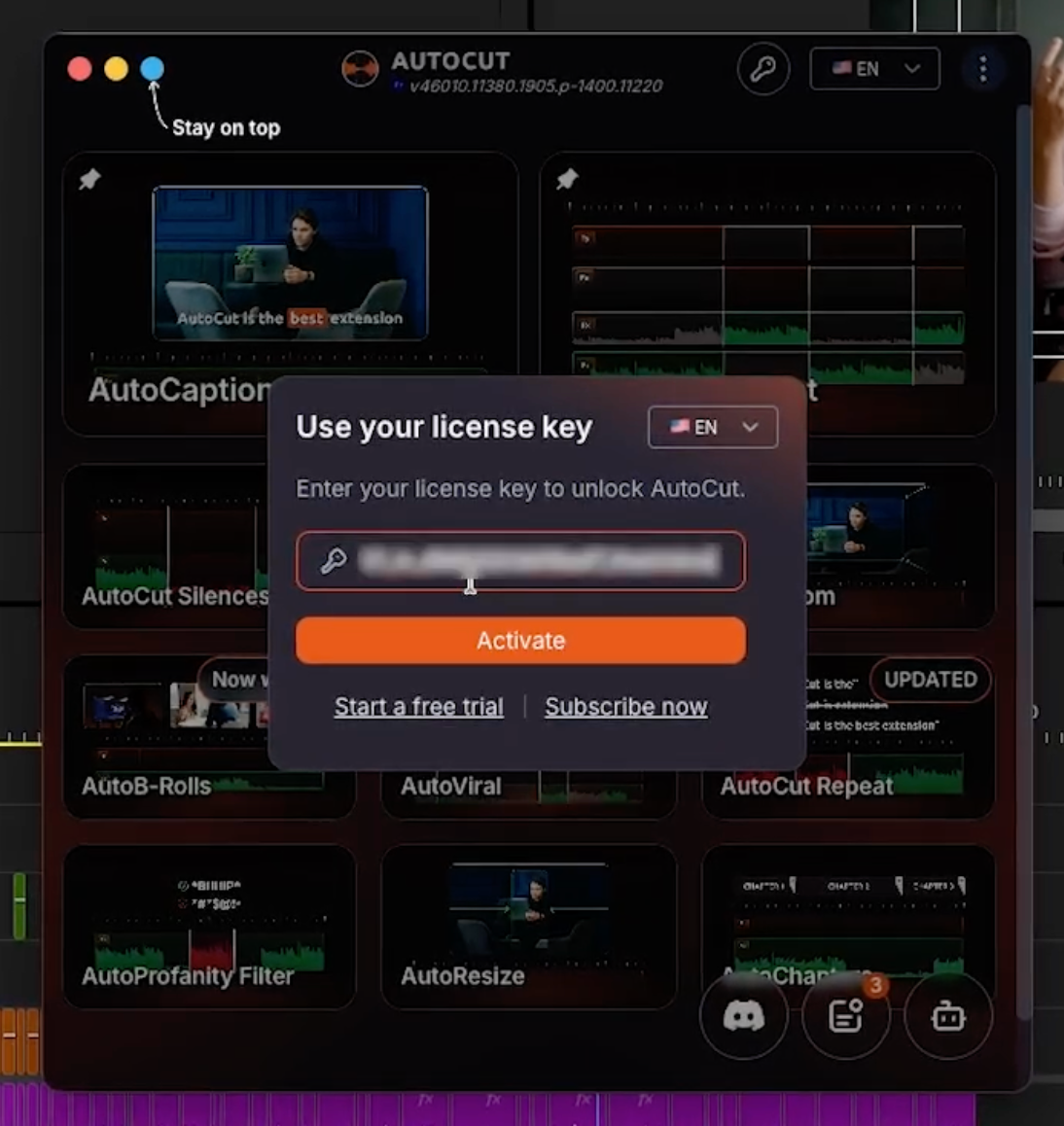
Go back to AutoCut, paste your license key into the field, and click Activate. Your license is now active on this new computer.
Check Your Remaining Device Switches
On that same account page, you can confirm the activation worked and see how many device switches you have left for the month. It is a handy way to keep track before you travel or change setups again.
Edit Anywhere With AutoCut
That is all it takes to run AutoCut on any of your computers with the same account. If you have not tried it yet, you can try AutoCut free for 14 days, no credit card needed, and subscribe to our channel for more quick tutorials.
Myriam HINDERER
Chief Marketing & Communication Officer